How to catalog bulk Pokémon cards without losing your evenings
The short answer
To catalog bulk Pokémon cards, do a rough sort by language and era, set shiny cards aside, then scan in small batches instead of typing everything in. Then resolve the uncertain matches in a single pass. With a free scanner that has no scan limit, such as FastScan TCG (coming soon to iPhone), the cost per card stops mattering: only your review time is left.
A pile of cards is not the same job as a collection that is already sorted. If you want everything in set order before you start, you never will start. The better approach flips the order: record first, and let the app do the sorting.
1. Decide what you actually want to know
Your goal sets how much detail is worth recording.
- Knowing what you have: name, set and number are enough.
- Completing sets: add the variant, normal or reverse.
- Selling: add the condition, but only for the cards worth the effort. Misprint’s guide suggests deciding early how much effort to spend and handling the few valuable cards separately.
2. Do a rough sort, not a full sort
A few piles, no more:
- one pile per language, because a French card and an English card are different entries in your collection (why language matters);
- old cards apart, since they print their details in other places (where to read the number);
- shiny cards apart, because you will need to check their variant (holo or reverse);
- basic Energy, counted by hand if you don’t care about it.
Don’t sort by set: that is exactly what the app is there to do.
3. Set up a simple scanning spot
Put cards on a plain matte surface, under soft light that doesn’t glare off foil. Take very shiny cards out of their sleeves. Keep a “to do” pile and a “done” pile, so an interruption doesn’t lose your place.
4. Pick the right scan mode
| Situation | FastScan TCG mode | Why |
|---|---|---|
| A loose pile of cards | Continuous | You pass cards in front of the phone one after another, without touching the screen |
| One difficult or shiny card | Manual | You choose when the photo is taken, one card per tap |
| Cards already in a binder | Binder | One photo per page, then the next page (the details) |
The “Scanned cards” list takes results from every mode and stays saved on the phone until you confirm it, so an interruption doesn’t mean starting over.
Work in batches you can review in one go. A list that is too long is hard to check, and the review is what decides how good your inventory is.
5. Resolve uncertain matches in one pass
This step separates a usable inventory from a wrong list. A silent error, a card saved as another one with nothing to warn you, costs far more than a question.
When two cards look alike, FastScan TCG shows them side by side next to the photo of your card. You tap the right one, then pick Normal or Reverse Holo.
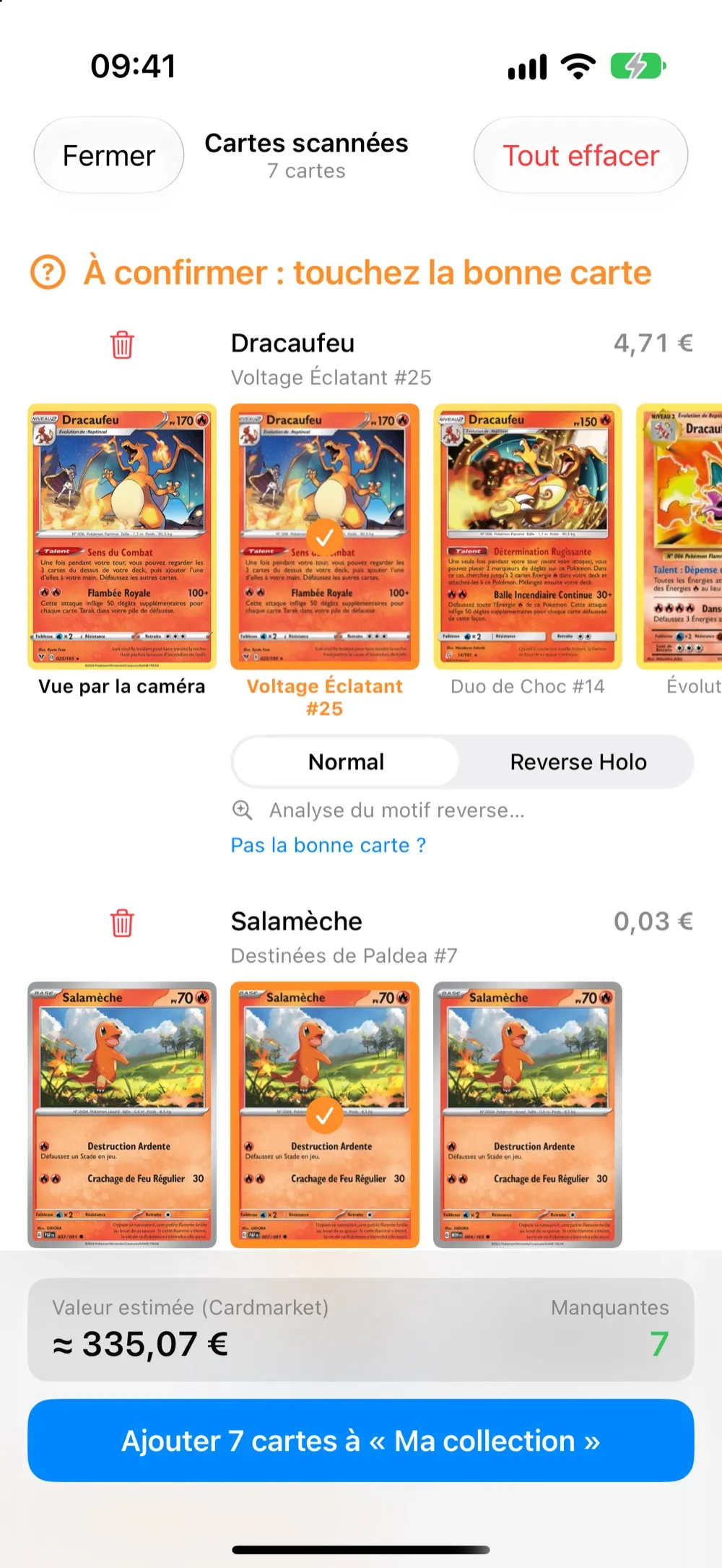
The review screen: your photo on the left, suggestions on the right, and the variant to pick by hand. The app's screens exist in French for now.
Three checks are worth the time they take:
- The set: reprints often share the same artwork.
- The language: especially if you mix French and English.
- The variant: FastScan TCG does not detect reverse holo yet and preselects a variant, so you confirm it yourself, with the photo in view.
6. Sort into collections, not boxes
Once confirmed, cards can go into as many collections as you like: by set, by person, by storage box. Put the name of the box or binder in the collection and you can find the physical card without digging.
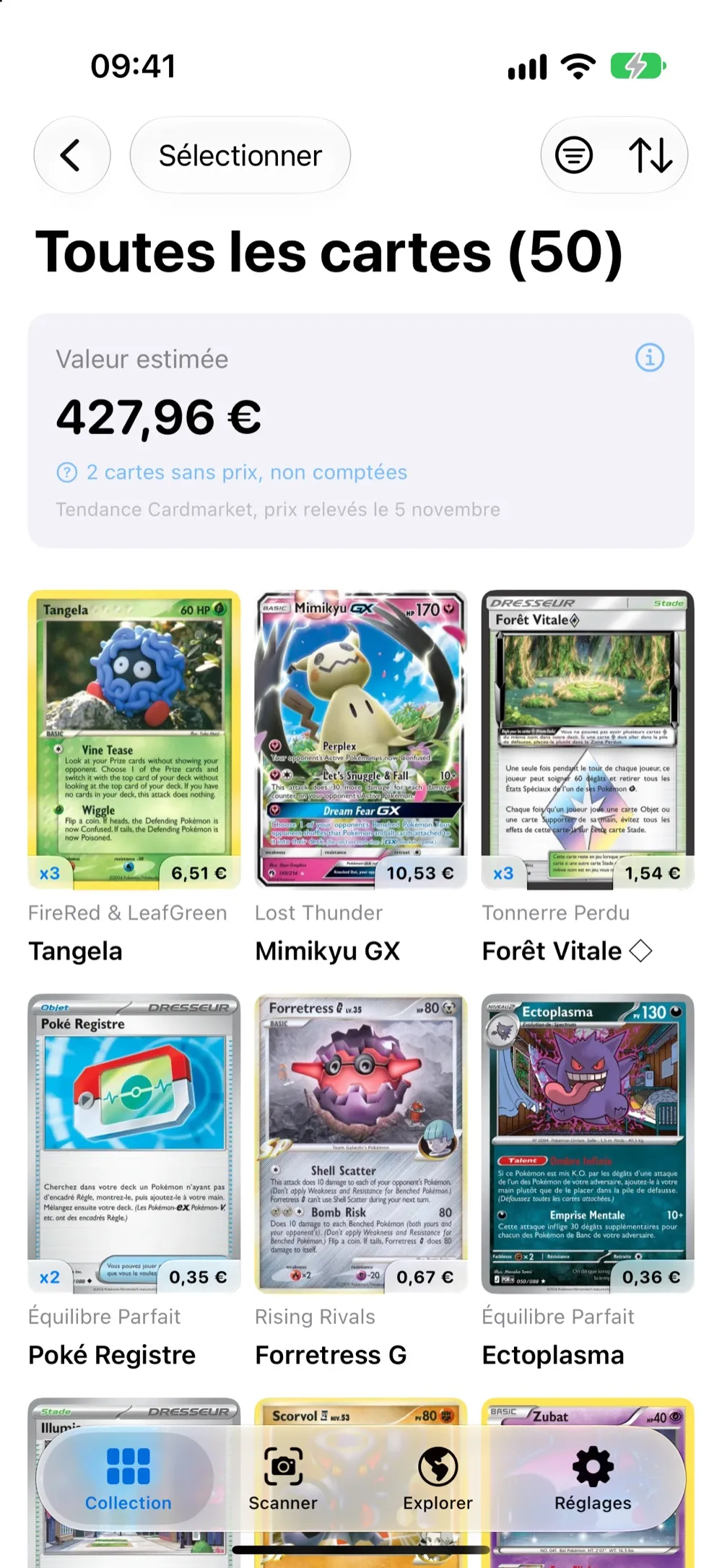
The collection shows the number of copies on each card, with filters and sorting.
The mistakes that waste the most time
- Trying to sort everything before scanning: you do by hand what the app does by itself.
- Forgetting about duplicates: in Continuous mode, a card already in the list isn’t added. To count your copies, use Manual or Binder mode with the duplicates setting on.
- Accepting a suggestion without looking at the set: that is where reprint errors come from.
- Picking a limited app for a big pile: check the scan limit first, as several keep unlimited scanning for a paid plan (comparing the apps).
Frequently asked questions
Should I sort my cards before scanning them?
A light sort is enough: language, era and shiny cards apart. The detailed order, by set for example, then comes on its own in the app, from the data of each scanned card.
How do I count duplicates when scanning a big pile?
In FastScan TCG, Continuous mode doesn't add a card that is already in the list. To count your copies, turn on the duplicates setting and use Manual or Binder mode.
How many cards can I scan for free?
FastScan TCG is free and has no scan limit. Several other apps keep unlimited scanning for a paid plan, so check their terms before starting a big inventory.
What if the app does not recognise a card?
Search for it by name or number in the catalogue and pick the language. If it is not in the catalogue, set it aside rather than saving it as a card that merely looks like it.